DeepAgents Code Integration Demo#
Description#
This demo presents OpenVINO Model Server (OVMS) integration with DeepAgents Code (dcode), an open coding agent. You run a model on OVMS, point dcode at it with a single environment variable, and then use the agent to build and call a custom MCP tool — all served locally, with no cloud model and no provider lock-in.
How it fits together#
flowchart LR
    A["dcode frontend"] -->|"OpenAI-compatible API"| B["OVMS"]
    B --> C["OpenVINO model\nGPU / CPU / NPU"]
OVMS runs the model locally and exposes
http://localhost:8000/v1(OpenAI-compatible).dcode is configured with
OPENAI_BASE_URLpointing at that endpoint — that single line is the whole integration.On top of that connection you add an MCP tool, validate it with a subagent, and call it end to end.
Setup#
Prerequisites#
This demo deploys OpenVINO Model Server with a Docker container (Linux) or the native ovms.exe (Windows), and installs dcode via Python pip.
Requirements:
Intel x86_64 host, Linux or Windows
Docker Engine on Linux
Python 3.12+ with pip
HuggingFace access to
OpenVINO/Qwen3.8-27B-int4-ov(auto-downloaded on first OVMS start)
This demo was tested on an Intel host with 32 GB RAM and GPU VRAM extended via Intel Graphics Software. Smaller-memory systems may also work; if you hit memory limits, switch to a smaller model from the preconfigured OpenVINO models catalog.
Step 1: Start OVMS#
The model is auto-pulled on first start if it is not already present in the model repository.
mkdir -p ${HOME}/models
export GPU_ARGS=$(if ls /dev/dri/render* >/dev/null 2>&1; then echo "--device /dev/dri --group-add $(stat -c '%g' /dev/dri/render* | head -n1)"; fi)
docker run -d ${GPU_ARGS} -u $(id -u):$(id -g) \
  -v ${HOME}/models:/models -p 8000:8000 openvino/model_server:latest-gpu \
  --rest_port 8000 --model_repository_path /models \
  --source_model OpenVINO/Qwen3.8-27B-int4-ov
mkdir c:\models
ovms.exe --source_model OpenVINO/Qwen3.8-27B-int4-ov --model_repository_path c:\models --model_name OpenVINO/Qwen3.8-27B-int4-ov --rest_port 8000
Readiness checks:
curl -f http://localhost:8000/v1/models
Step 2: Install dependencies#
python -m pip install --upgrade pip
python -m pip install 'deepagents-code==0.1.70' 'mcp<2'
python -m pip install --upgrade pip
python -m pip install "deepagents-code==0.1.70" "mcp<2" colorama
colorama is required by the console renderer on Windows.
On Windows, use a short relative working directory such as
demoordcode-demo; dcode may reject absolute paths withError: Windows absolute paths are not supported.
Step 3: Clone OVMS repository and enter demo directory#
If you do not already have the OVMS repository checked out locally, clone it and change into the demo directory.
git clone https://github.com/openvinotoolkit/model_server.git
cd model_server/demos/integration_with_deepagents_code
git clone https://github.com/openvinotoolkit/model_server.git
cd model_server\demos\integration_with_deepagents_code
If you already have the repository checked out, just change into demos/integration_with_deepagents_code.
Step 4: Prepare dcode configuration#
The only line that actually connects dcode to OVMS is OPENAI_BASE_URL=http://localhost:8000/v1 — everything else below is dcode convenience configuration. First export the environment variables below:
export OPENAI_API_KEY=not_used
export OPENAI_BASE_URL=http://localhost:8000/v1
export DEEPAGENTS_CODE_PRICES_AUTO_UPDATE=0
export DEMO_DIR="$PWD"
set OPENAI_API_KEY=not_used
set OPENAI_BASE_URL=http://localhost:8000/v1
set DEEPAGENTS_CODE_PRICES_AUTO_UPDATE=0
set DEMO_DIR=%CD%
Then set the default model so later dcode invocations don’t need to repeat --model. This writes ~/.deepagents/config.toml and exits immediately:
dcode --default-model openai:OpenVINO/Qwen3.8-27B-int4-ov
OPENAI_BASE_URL: points dcode at the OVMS endpoint.OPENAI_API_KEY=not_used: OVMS does not require a key for local serving, but the OpenAI client library expects the variable to be set.DEEPAGENTS_CODE_PRICES_AUTO_UPDATE=0: avoids external pricing refresh.DEMO_DIR: expanded inside.deepagents/.mcp.jsonso the MCP server script is located reliably.
dcode uses git to track file state and pins its project root (and its skill / MCP / subagent discovery) at the closest .git directory. Initialize a repository inside the demo folder so dcode scopes to it, even when the folder itself lives inside another checkout (like the model_server clone):
git init
Demo flow#
Start dcode session and follow the steps below in order.
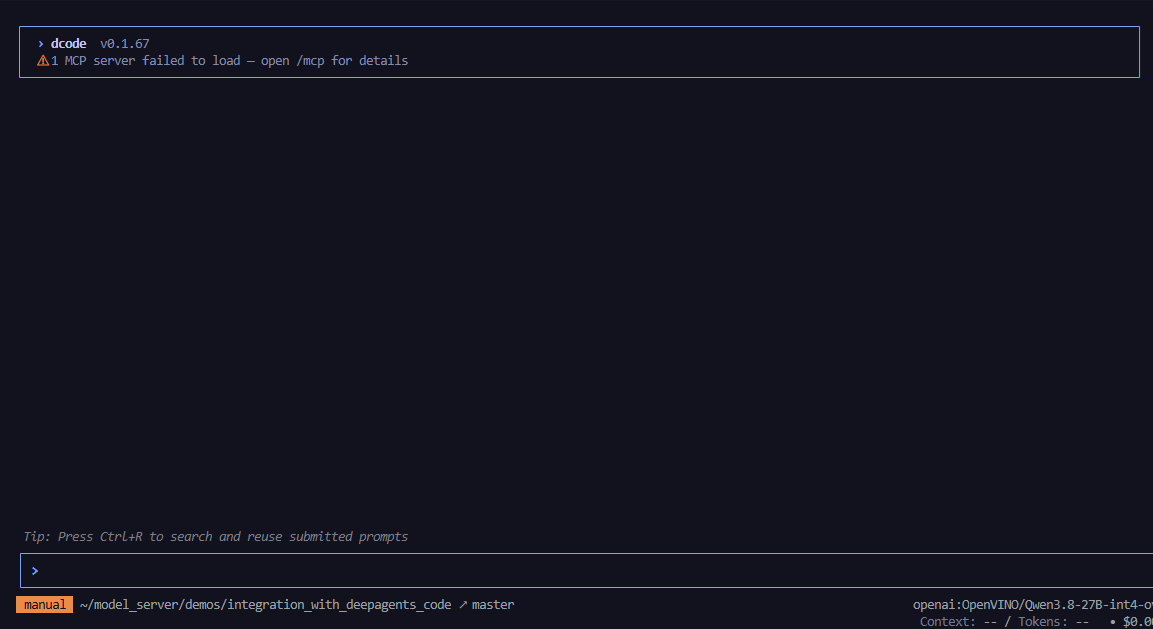
Step 1: Start dcode#
Launch dcode with a locked-down tool surface.
Run deepagents code with a limited set of tools:
dcode --allow-fs-tools read_file,write_file,grep,ls,execute -S python,python3,timeout,cat,grep,ls --no-interpreter --trust-project-mcp
Parameter notes:
--allow-fs-tools: controls exposed local tools.executeis needed for runtime checks.-S ...: shell allow-list forexecutecommand safety.--no-interpreter: disables js_eval middleware.--trust-project-mcp: auto-trusts project MCP configuration.
Step 2: Ask agent to summarize demo#
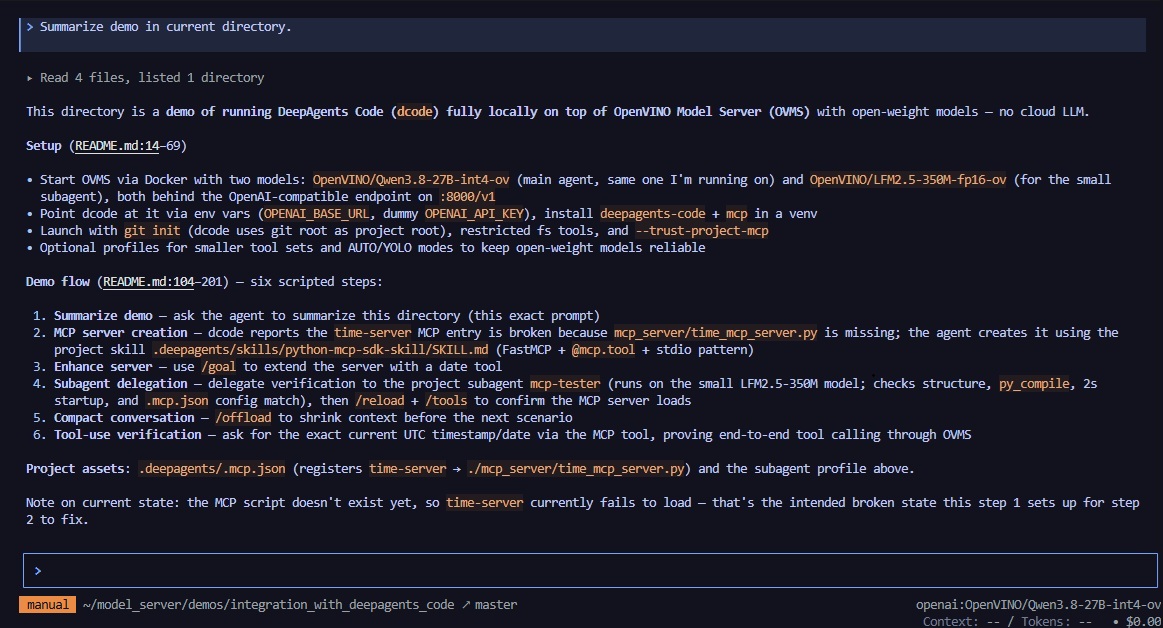
Start with a broad, low-risk prompt so the agent explores the working directory, loads project files into its context and confirms that OVMS is reachable. This also warms up prefix caching on the server for later turns.
Summarize demo in current directory.
First response can be slower because initial dcode context is large. Later turns are typically faster due to prefix caching.
Step 3: Create MCP server#
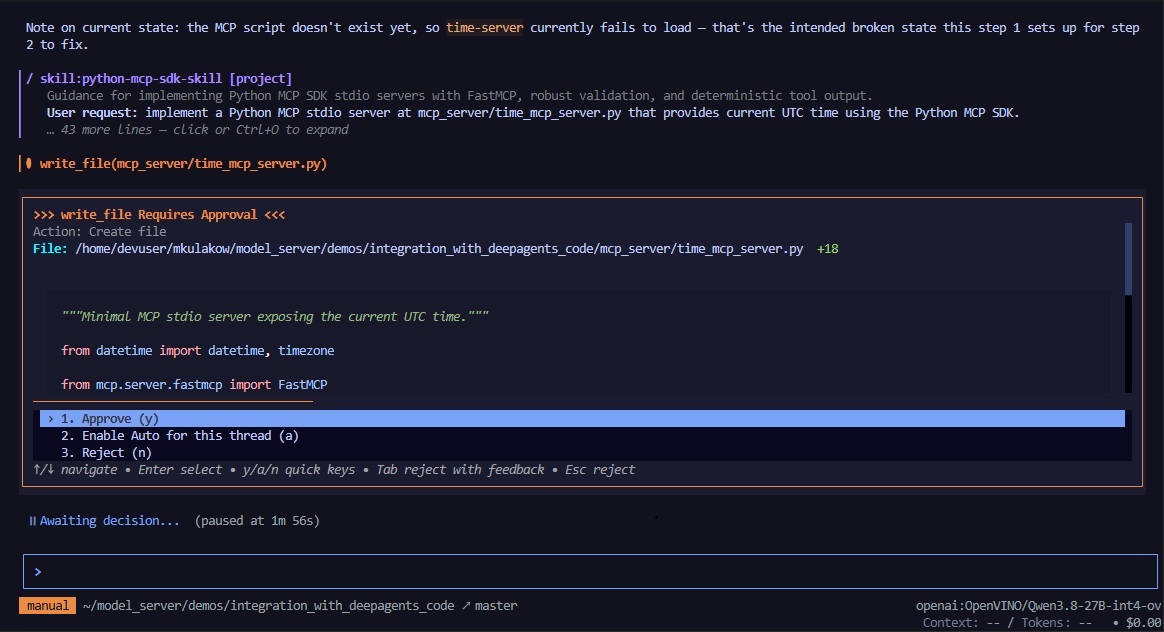
The project ships with a preconfigured MCP client entry in .deepagents/.mcp.json, but the actual server script does not exist yet. In interactive mode, dcode surfaces this as a tool-loading error — a good signal that the agent is aware of the MCP configuration. Ask the agent to create the script using the project skill located at .deepagents/skills/python-mcp-sdk-skill/SKILL.md. Invoking a skill with /skill:<name> gives the agent a focused, tested recipe instead of relying on generic knowledge:
/skill:python-mcp-sdk-skill implement a Python MCP stdio server at mcp_server/time_mcp_server.py that provides current UTC time using the Python MCP SDK.
Step 4: Extend MCP server with date tool#
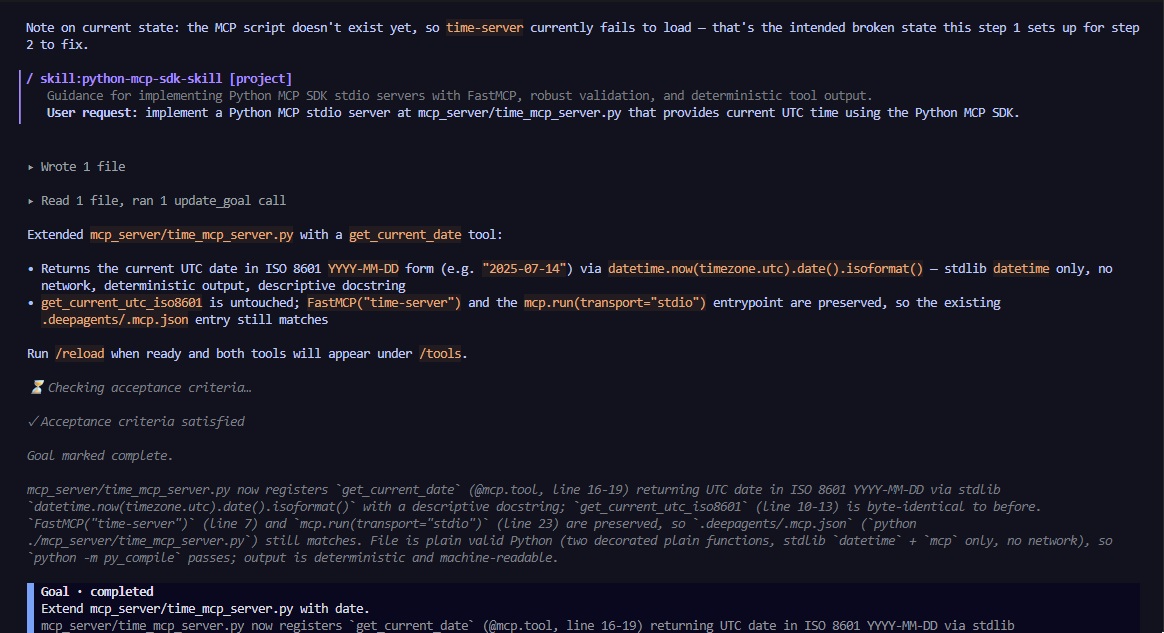
Use /goal to switch the agent into goal mode: it will propose acceptance criteria, iterate on the implementation and self-grade the result against those criteria. This is a good fit for incremental changes on top of an existing file.
/goal Extend mcp_server/time_mcp_server.py with date tool.
First the agent negotiates acceptance criteria for the change:
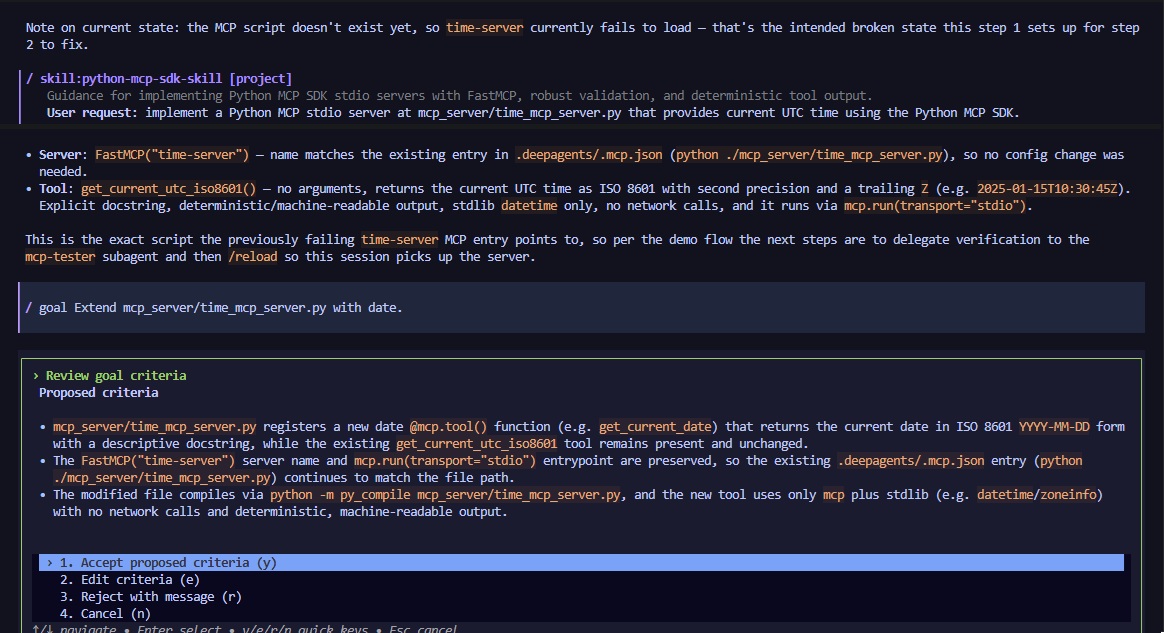
Then it works towards those criteria:
And finally grades its own output:
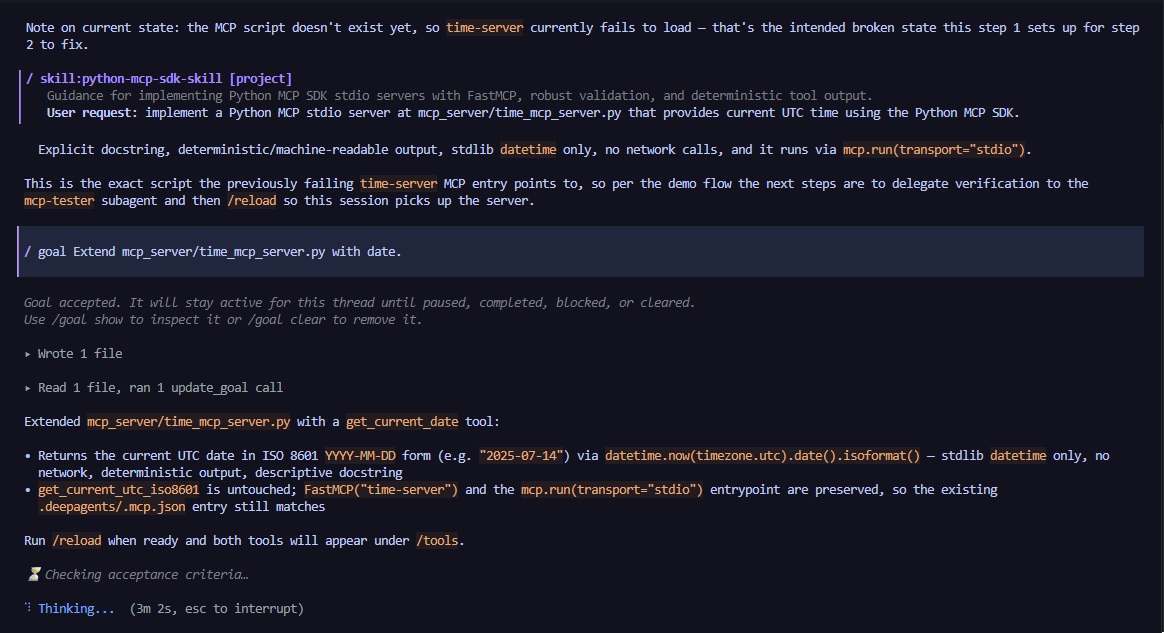
Once the goal is satisfied, clear it so subsequent prompts run in normal mode:
/goal clear
Step 5: Validate MCP server with subagent#
Instead of running tests in the main context, delegate validation to a dedicated subagent. This keeps the main conversation focused. The subagent definition lives in:
mcp-tester verifies static structure and runtime behavior of the MCP server and returns a concise PASS/FAIL verdict.
Delegate to subagent mcp-tester:
Test mcp_server/time_mcp_server.py
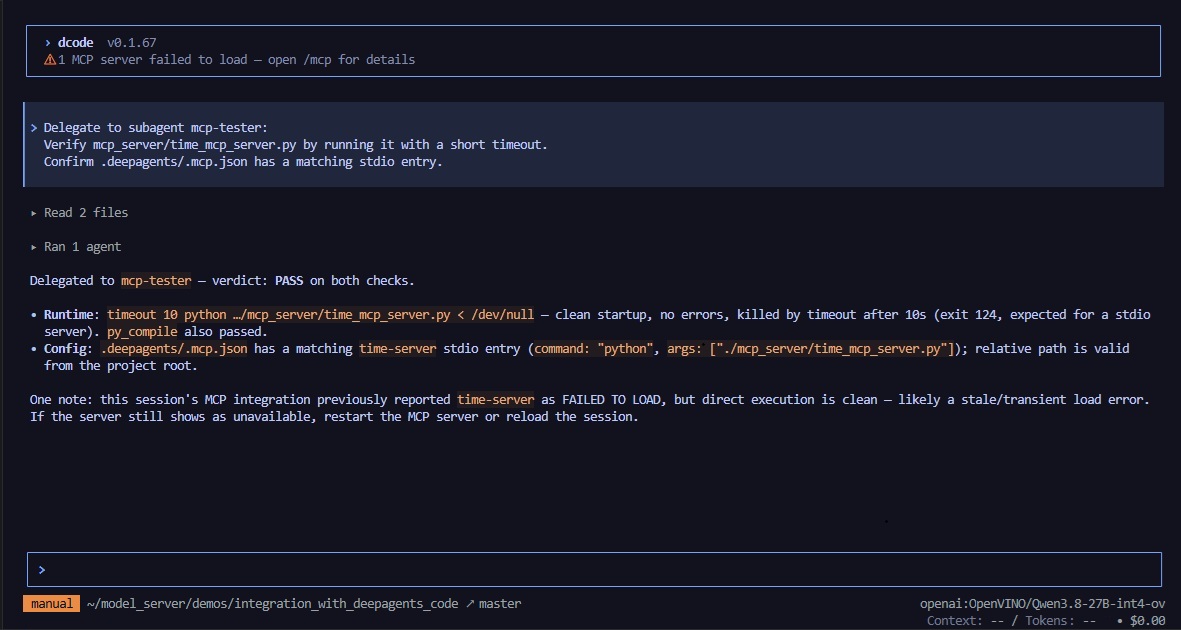
If tester returns FAIL, main agent can proceed with fixes. If tester returns PASS, continue below.
Step 6: Reload MCP tools#
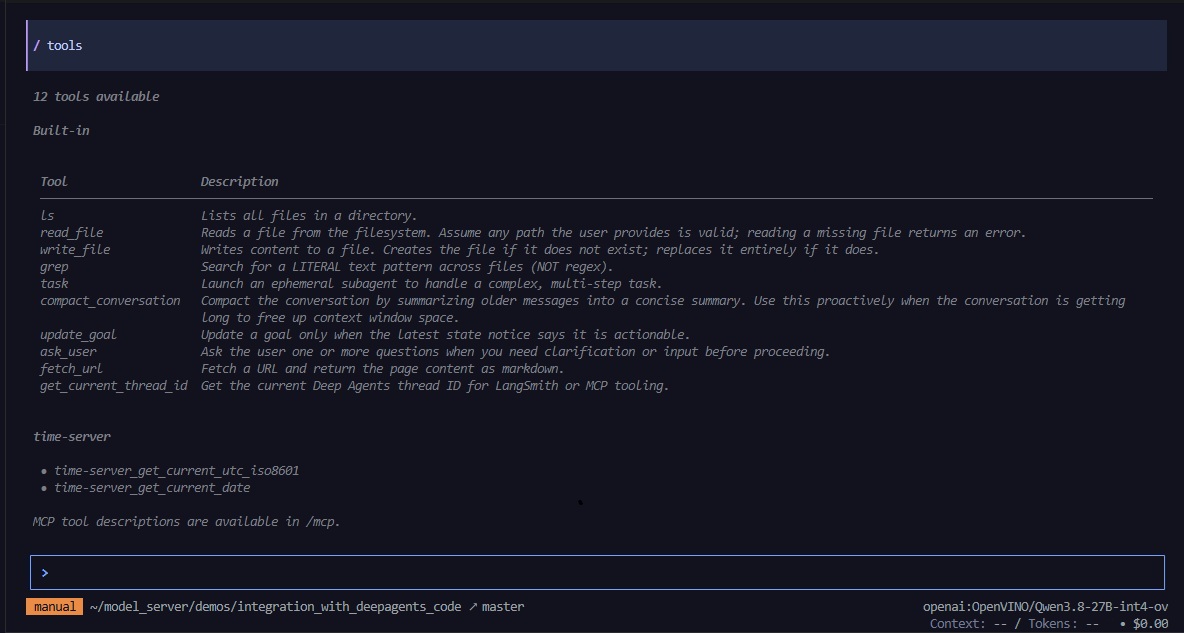
The MCP server is now on disk, but the current dcode session was started before it existed, so its tools are not yet registered. Use /tools to inspect the currently loaded tool list, then /reload to re-scan the MCP configuration without restarting dcode.
/tools
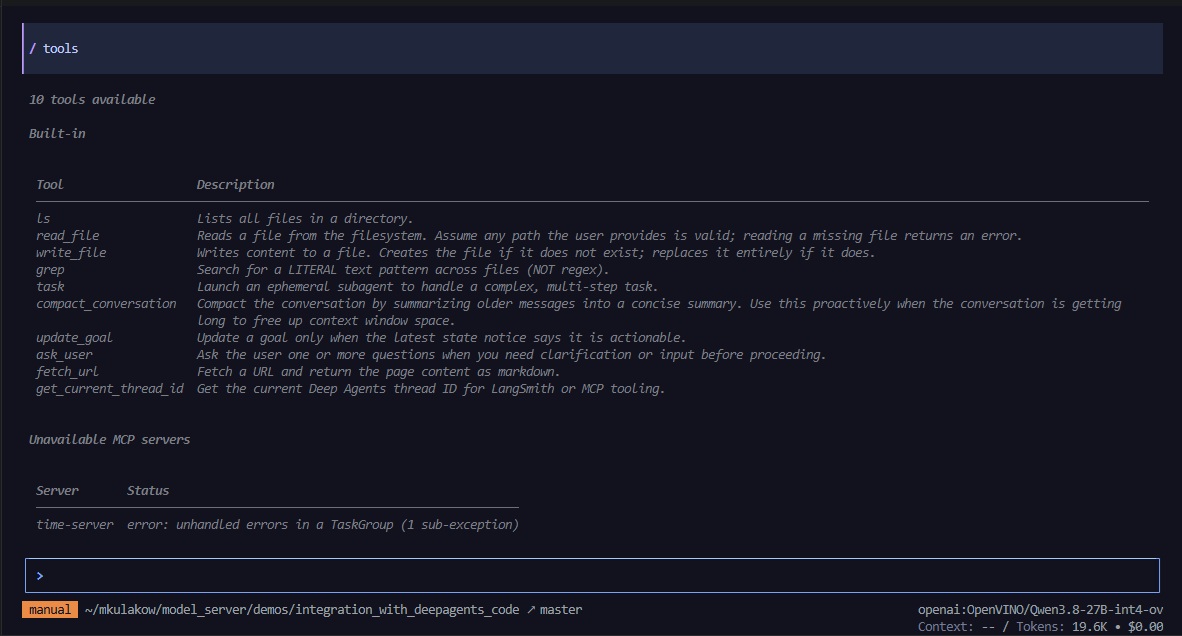
/reload
/tools
Step 7: Verify end-to-end tool call#
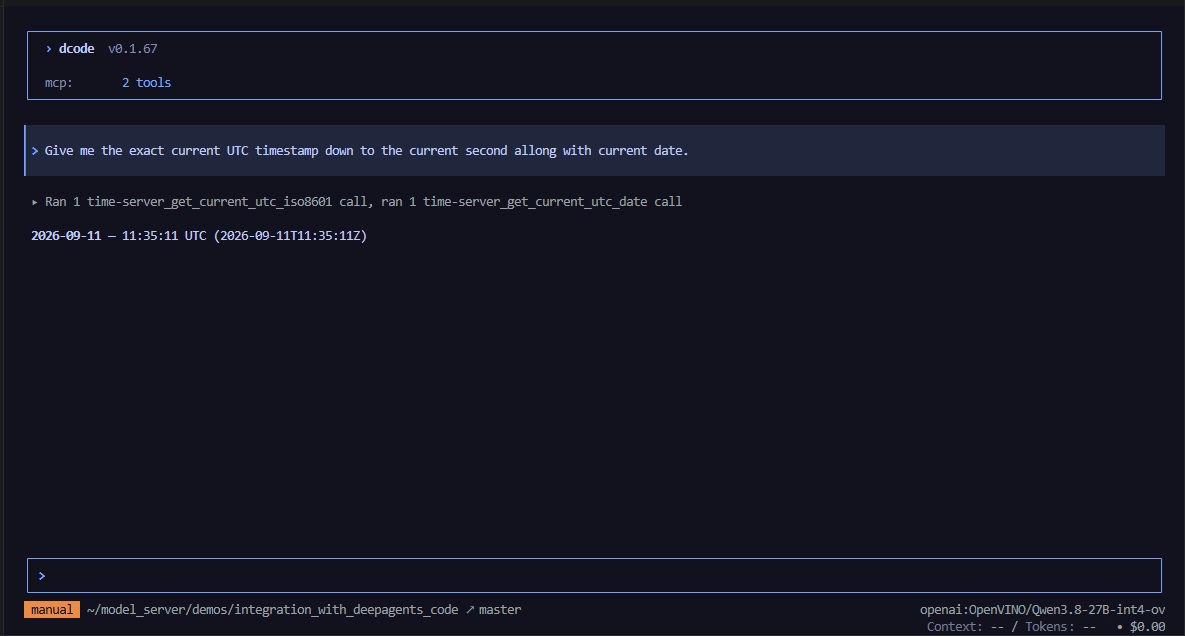
With the MCP tools now registered, issue a prompt that can only be answered correctly by calling the freshly created server. If the agent invokes the MCP tool and reports the real UTC time and date, the end-to-end integration is working.
Give me the exact current UTC timestamp down to the current second along with current date.
Headless flow#
Use these one-shot commands for automation or quick verification. In this mode, each dcode -n ... invocation starts a fresh session and exits after producing a final response. The expected outputs below are illustrative — exact wording and values vary by model and run.
Step 1: Summarize demo#
dcode -n "Summarize demo in current directory." --allow-fs-tools read_file,grep,ls --no-mcp --no-interpreter --quiet
Expected output
## Demo Summary: DeepAgents Code Integration with OpenVINO Model Server

This demo (`integration_with_deepagents_code`) showcases how to integrate [DeepAgents Code](https://github.com/langchain-ai/deepagents) (`dcode`) with [OpenVINO Model Server (OVMS)](https://github.com/openvinotoolkit/model_server) using OpenAI-compatible endpoints.

### Architecture

- **OVMS** serves an OpenVINO model (`OpenVINO/Qwen3.8-27B-int4-ov`) via a Docker container on port `8000`
- **dcode** connects to OVMS via `OPENAI_BASE_URL=http://localhost:8000/v1`
- An **MCP stdio server** (`mcp_server/time_mcp_server.py`) provides `time` and `date` tools to agents
- A **subagent** (`mcp-tester`) validates the MCP server's structure and runtime behavior

### Demo Flow (6 Steps)

| Step | Description |
|------|-------------|
| 1 | Ask agent to summarize the demo (exploration + OVMS reachability check) |
| 2 | Agent creates the MCP server using `python-mcp-sdk-skill` |
| 3 | Agent extends the server with a `date` tool (via `/goal` acceptance-criteria loop) |
| 4 | Subagent `mcp-tester` validates the server statically and at runtime |
| 5 | Reload MCP tools in the current session (`/reload`) |
| 6 | End-to-end tool use — agent calls `time` + `date` MCP tools to answer a real prompt |

### Key Components

- **Config**: `.deepagents/.mcp.json` declares the `time-server` MCP endpoint
- **Agent**: `.deepagents/agents/mcp-tester/` defines the validation subagent
- **Skill**: `.deepagents/skills/python-mcp-sdk-skill/` provides the MCP server scaffolding recipe
- **Screenshots**: `screenshots/` contains visual reference images for each step

### Use Cases

- **Interactive**: Type prompts into the dcode TUI for hands-on learning
- **Headless**: Run `dcode -n "..." --quiet` for CI/automation scripts
Step 2: Create MCP server#
dcode -n "Implement a Python MCP stdio server at mcp_server/time_mcp_server.py that provides current UTC time using the Python MCP SDK." --skill python-mcp-sdk-skill --allow-fs-tools read_file,write_file,grep,ls,execute -S python,python3,timeout,cat,grep,ls --no-mcp --no-interpreter --quiet
Expected output
Created `mcp_server/time_mcp_server.py` with:

- `get_current_utc_iso8601()` tool returning the current UTC time as an ISO 8601 string with trailing `Z`.
- No third-party dependencies beyond `mcp`.
- No network calls. Deterministic, machine-readable output.
Step 3: Extend MCP server with date tool#
dcode -n "Extend mcp_server/time_mcp_server.py with a date tool." --rubric "mcp_server/time_mcp_server.py defines a new @mcp.tool returning the current UTC date as an ISO string; the existing time tool still works; python -m py_compile mcp_server/time_mcp_server.py succeeds." --allow-fs-tools read_file,write_file,grep,ls,execute -S python,python3,timeout,cat,grep,ls --no-mcp --no-interpreter --quiet
Expected output
Done. Added `get_current_utc_date()` tool to `time_mcp_server.py`. It returns the current UTC date as an ISO 8601 string (`YYYY-MM-DD`). Compiles cleanly.⏳ Checking acceptance criteria…
✓ Acceptance criteria satisfied
Step 4: Validate MCP server with subagent#
dcode -n "Delegate to subagent mcp-tester: Test mcp_server/time_mcp_server.py" --allow-fs-tools read_file,grep,ls,execute -S python,python3,timeout,cat,grep,ls --no-mcp --no-interpreter --quiet
Expected output
**time_mcp_server.py — MCP Test Results: All PASSED ✅**

| Check | Result |
|---|---|
| Script Structure | ✅ FastMCP, 2 tools, `mcp.run(transport="stdio")` |
| py_compile | ✅ Compiles cleanly (Python 3.12) |
| Startup Timeout | ✅ Exits cleanly (no TTY in sandbox) |
| MCP Config Match | ✅ `.deepagents/.mcp.json` references the correct server |
Step 5: Verify end-to-end tool call#
dcode -n "Give me the exact current UTC timestamp down to the current second along with current date." --allow-fs-tools read_file,grep,ls,execute -S python,python3,timeout,cat,grep,ls --trust-project-mcp --no-interpreter --quiet
Expected output
Current UTC timestamp: `2026-09-30T14:00:12.508579Z`

Current UTC date: `2026-09-30`

Full datetime: **Tuesday, September 30, 2026 at 14:00:12 UTC**
If the agent instead returns “This MCP action requires approval, but the current headless runtime has no approval UI”, the tools in mcp_server/time_mcp_server.py are missing MCP ToolAnnotations. dcode’s headless guard rejects any MCP tool whose metadata does not have readOnlyHint=True and destructiveHint=False. The python-mcp-sdk-skill used in Step 3 emits these annotations for read-only tools; if you edited the server by hand, re-run Step 3 or add the annotations manually.
Tips#
Smaller tool surface#
By default, if --allow-fs-tools is not set, dcode enables the built-in filesystem tools. For open-weight models, reducing the tool surface can improve reliability and make the agent more predictable.
Non-MCP tasks:
dcode --interpreter-tools safe --allow-fs-tools read_file,grep,glob,ls --no-mcp
MCP tasks:
dcode --interpreter-tools safe --allow-fs-tools read_file,grep,glob,ls,execute
If a task fails because a required tool is unavailable, restart dcode with a broader tool set.
Approval modes#
dcode supports several approval modes (Manual, Auto, YOLO) that trade off safety for autonomy. See the official dcode documentation for details on each mode and how to enable them.
Compacting conversation#
With /offload command the agent can reduce its context by dropping messages that are not relevant anymore.
/offload