OpenVINO Model Server as service on Windows#
This document describes installation and usage of OpenVINO Model Server as a service on Windows
Install OpenVINO Model Server#
Follow deployment instructions for Windows OS.
Install the service#
Use LocalService as the recommended service account. This keeps the service limited and avoids granting it write access to the model repository.
mkdir c:\models
install_ovms_service.bat c:\models LocalService
sc start ovms
Change the script parameter with the model repository path if needed. The service account can also be set to different account like LocalSystem. For security reasons it is recommended to use account with the lowest permissions.
Security note: The service reads and reloads
config.jsonfrom the model repository directory automatically. Use a dedicated repository such asC:\modelsand keep the directory writeable by the admin/user expected to manage the models and their configuration.ovmsserver process needs read-only access to the model repository andconfig.jsonand write permissions to the log file. Models are managed with the one user’s permissions who is running the ovms –pull CLI commands. The installer does not modify ACLs on disk automatically; the administrator must ensure adequate permissions on the models repository. Some models or custom graphs might be able to execute arbitrary code defined by custom graph nodes. It will be executed with the credential of ovms service account. Keep the log directory separate and allow the service to write there. Do not point the model repository at a directory that non-authorized accounts can modify.
During the installation, the model repository path will be set in the OVMS_MODEL_REPOSITORY_PATH environment variable, which defines the default parameters for the ovms CLI to interact with the service.
To override the service account explicitly:
install_ovms_service.bat c:\models LocalService
Optionally you can change the default service parameters like below:
sc start ovms --rest_port 8000 --config_path c:\models\config.json --log_level DEBUG --log_path c:\tmp\ovms_server.log
Start the service#
sc start ovms
Stop the service#
sc stop ovms
Delete the service#
sc delete ovms
Interaction with the service#
List models pulled in the model repository#
ovms --list_models
Pull models#
ovms --pull --model_name OpenVINO/Qwen3-8B-int4-ov --task text_generation --target_device CPU
Start a model by adding it to the config.json#
ovms --add_to_config --model_name OpenVINO/Qwen3-8B-int4-ov
Stop a model by removing it from the config.json#
ovms --remove_from_config --model_name OpenVINO/Qwen3-8B-int4-ov
Check served models#
curl http://localhost:8000/v3/models
Check models configured for serving#
type %OVMS_MODEL_REPOSITORY_PATH%\config.json
Service status gui#
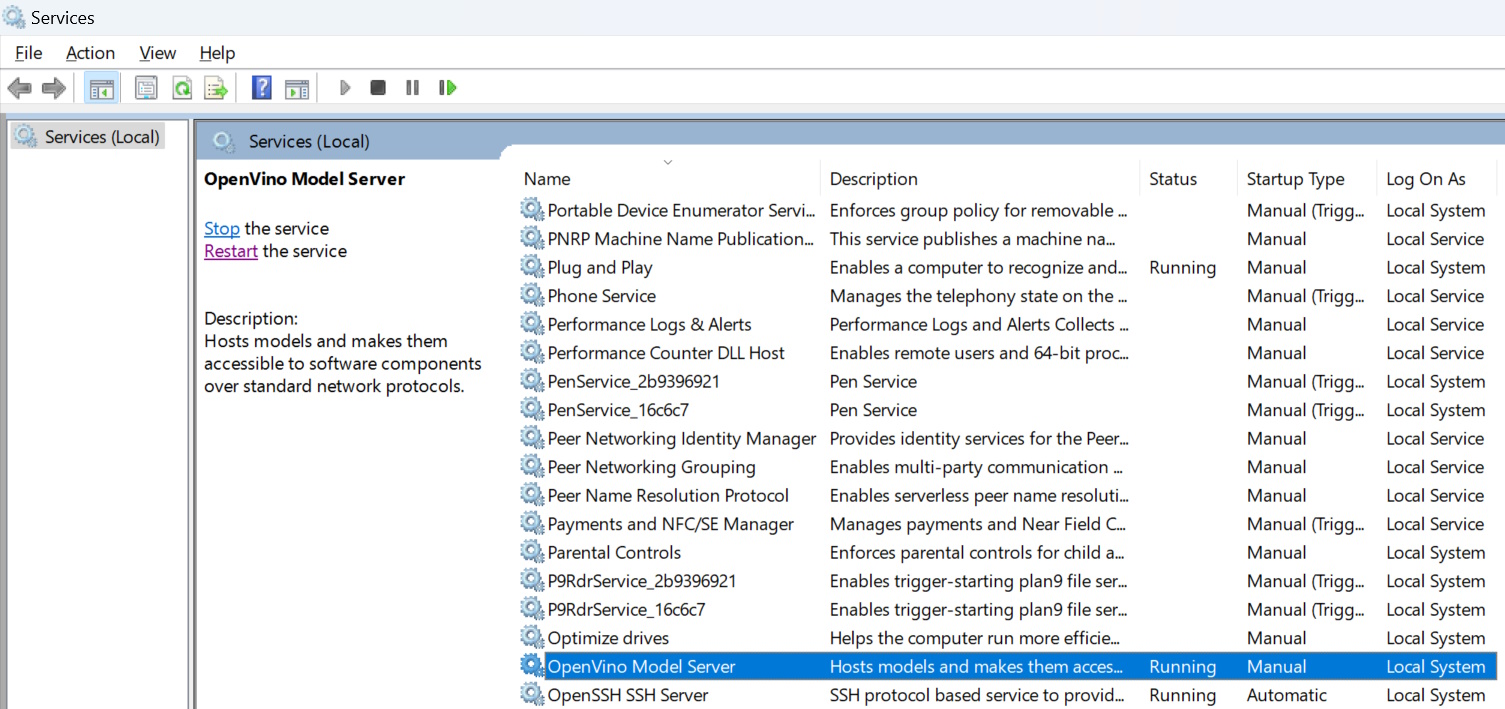
You can monitor the service status gui in the native services windows application.
Start it by writing services in the windows start search bar.
Service registry settings#
You can monitor the service settings in the native windows registry editor application.
Start it by writing regedit in the windows start search bar.
The service settings after installation are available at the Computer\HKEY_LOCAL_MACHINE\SYSTEM\CurrentControlSet\Services\ovms path:

Service log and events#
You can monitor the service log with the –log_level [INFO,DEBUG,TRACE] option during the service creation and the –log_path path_to_file parameter. By default, it will be saved in the ovms installation folder.
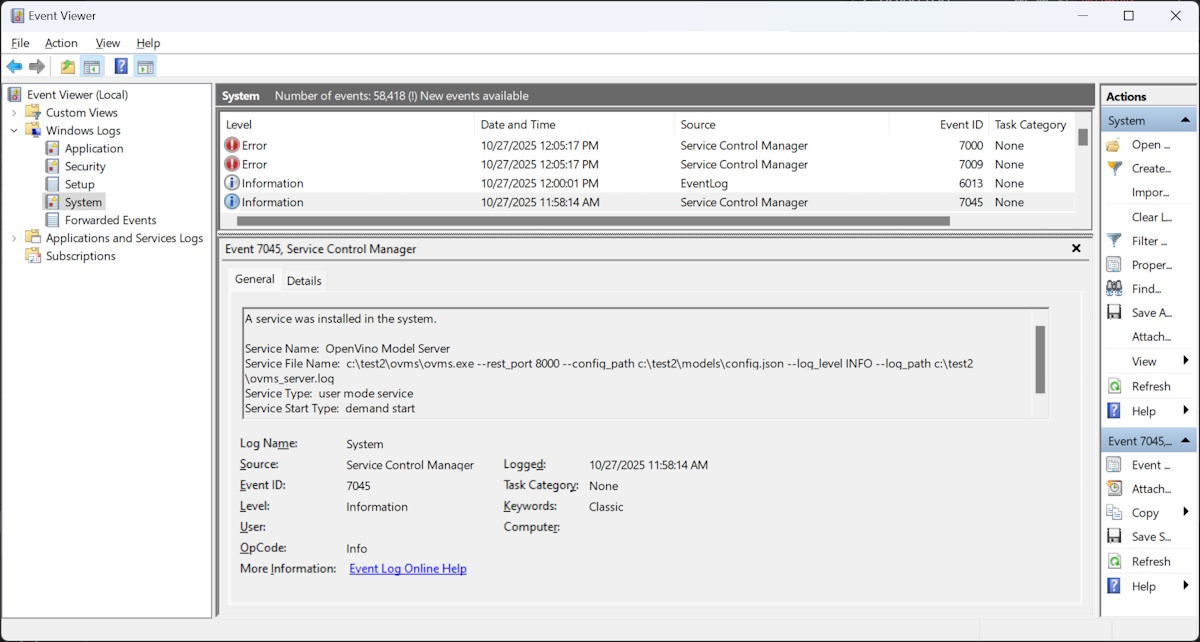
Additionally you can review the service events and errors in the native windows event viewer application.
Start it by writing event viewer in the windows start search bar.
The service events are visible in the Windows Logs -> System tab.